JavaScript templates
JavaScript templates let you replace a configuration value with JavaScript code that dynamically determines its value. This allows you to customize how navbar-card behaves based on Home Assistant states, user context, or other conditions.
Look for fields marked as JSTemplate in the configuration tables to see which values support JavaScript templates.
Info
Not to be confused with navbar templates, which allows you toreuse the same navbar configuration on all your dashboards.
Template syntax
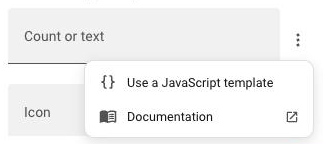
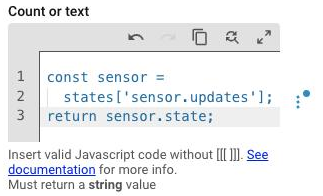
Only fields marked as JSTemplate support it. Open the menu of one of them and click Use a JavaScript template. The field becomes a code editor, where you write the code without [[[ and ]]].
Available context
Your JavaScript templates have access to these predefined variables:
| Variable | Content | Description |
|---|---|---|
states |
HA states |
Global state of all HA entities |
user |
HA user state |
Current user information |
hass |
HA hass object |
Home Assistant instance |
navbar |
{isDesktop: boolean} |
Navbar Card internal state |
States object
The state and attributes of any entity, e.g. a badge shown while the kitchen light is on:
Attributes work the same way, e.g. states['light.kitchen'].attributes.brightness.
User object
The current user (user.name, user.id, user.is_admin, user.is_owner), e.g. a route only admins can see:
Navbar object
The card's own state (navbar.isDesktop), e.g. a label only shown on desktop:
Debugging tips
-
Use Console Logging. Open the browser console (F12) to debug your templates.
-
Error Handling. Use try/catch to handle errors in your templates.